On the SSH Tectia Client menu bar, click Edit ->
Settings.... In the Settings dialog, select Profile Settings
-> Tunneling and select the Outgoing tab.
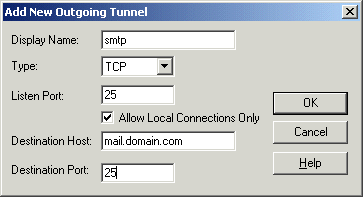
First, define the server connection for outgoing e-mail.
Click Add.
In the Name field, type for example smtp.
In Listen Port, type 25.
In Destination Host, type the name of your SMTP server
(such as mail.domain.com).
In Destination Port, type 25.
Click OK.
Figure : Tunneling an SMTP connection for outgoing e-mail
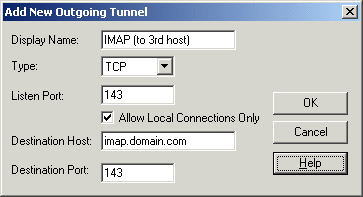
Next, define the server connection for incoming e-mail. Click
Add.
In the Name field, type for example imap.
In Listen Port, type 143.
In Destination Host, type the name of your IMAP server
(such as imap.domain.com).
In Destination Port, type 143.
Click OK.
Figure : Tunneling an IMAP connection for incoming e-mail