When connecting to a remote host for the first time, do the following:
Click the Connect icon on the toolbar, or select File
-> Connect, or hit Enter or Space on the
keyboard when the (still disconnected) Client window is active. This opens
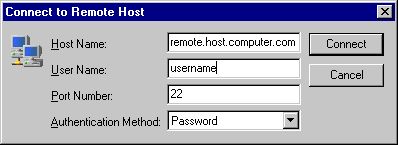
the Connect to Remote Host dialog.
Figure : Identify yourself to the remote host computer
In the Connect to Remote Host dialog, specify the host
name (or IP address), user name, port number and authentication method
for the new connection.
Click Connect.
When you connect to a remote host computer (using public-key host
authentication), the host will provide your local computer with its host
public key. The host key is the public key for identifying the remote
host computer that you are connecting to.
SSH Tectia Client checks if this key is already stored in your own public key
file. If not, the public key file common to all users on your computer is
checked next (see Section Defining Globally Accessible Host Keys).
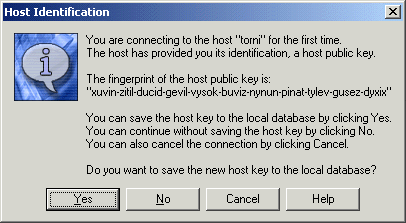
If the host key is not found, you are asked to verify it. The Host
Identification dialog opens.
Figure : The Host Identification dialog
In the Host Identification dialog, verify the key. You
will also be asked whether you want to save the key. Click Yes
to save the key.