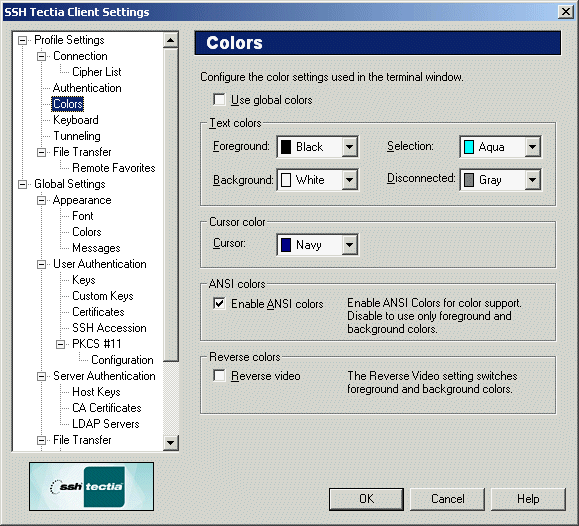
The colors used in the terminal window can be selected using the
Colors page of the Settings dialog. The new color settings are
active immediately when you click OK.
The color settings can be defined either globally (Global Settings) or
per profile (Profile Settings). When colors are defined in Global
Settings, the Use Global Colors option is not available, but
the color settings will affect all connection profiles.
Note that changing the terminal colors does not affect what is already
visible in the terminal window, but from this point onwards the text
output will use the selected color scheme.
To discard your changes, click Cancel.
Figure : The Colors page of the Settings dialog
Use Global Colors
Select the Use Global Colors check box if you want to use the
same color settings for each connection. If the check box is selected,
you cannot specify different color settings for each connection profile
(the other color settings are grayed out).
The Use Global Colors check box is visible only on the
Colors page that is located under Profile Settings in the
Settings dialog.
Text Colors
The text colors affect the terminal window background color and the
color of text in both a connected window and a disconnected window.
Foreground
Select the desired foreground color from the drop-down menu. Foreground
color is used for text in a window that has a connection to a remote
host computer. You can select from sixteen colors. Black is the default
foreground color.
Background
Select the desired background color from the drop-down menu. You can
select from sixteen colors. White is the default background color.
Selection
Use the drop-down menu to select the color that is used as the
background color when selecting text with the mouse. You can select from
sixteen colors. Aqua is the default selection color.
Disconnected
Use the drop-down menu to select the color that is used as the
foreground color in a terminal window that has no connection to a remote
host computer. You can select from sixteen colors. Gray is the default
foreground color for a disconnected terminal window.
Cursor Color
Select the desired cursor color from the drop-down menu. You can select
from sixteen colors. Navy is the default cursor color.
ANSI Colors
With ANSI control codes it is possible to change the color of text in a
terminal window. With the ANSI Colors setting you can select to use this
feature. Even if you disable ANSI colors, you can still select your
favorite text and background colors to be used in the terminal window.
Enable ANSI Colors
Select this check box to allow ANSI colors to be used in the terminal
window. By default, ANSI colors are selected.
Reverse Colors
By reversing the display colors you can quickly change the display from
positive (dark on light) to negative (light on dark) to improve
visibility.
Reverse Video
Select this check box to change the foreground color into background
color and vice versa. This setting affects the whole terminal window
when you click OK.