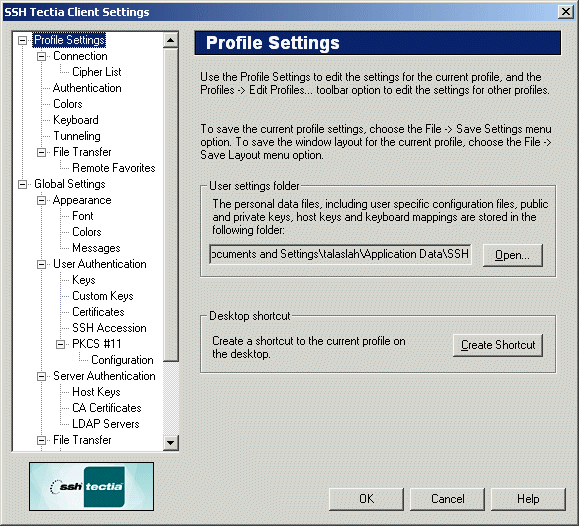
On the Profile Settings page of the Settings dialog you can
configure separate connection settings for each remote host computer. To
display the profile settings, open the Settings dialog and
click on the Profile Settings text on the left-hand side of the
dialog.
Figure : The Profile Settings page of the Settings dialog
User Settings Folder
The directory path to your personal data files is displayed in the text
field next to the Open button.
The default location for the user settings is in the profile folder of
the current Windows user account (for example
C:\WINNT\Profiles\username\Application Data\SSH). Note that this is not an editable field, but the
location of these files can be set by defining the
SSHCLIENT_USERPROFILE environment variable. For more
information, see the SSH Tectia Client FAQ (http://support.ssh.com/).
Your personal files include the settings file (default
name default.ssh2), your public and private keys,
host keys and the keyboard mapping file (for example
yourmapfile.sshmap).
Click the Open button to quickly access your personal data
files. The folder with the settings files opens. This is useful if you
wish to copy or backup your personal settings.
Note: Your private keys should always be kept secret. This is
important to remember if you are sharing your local computer with other
users. In this case, it is not advisable to store your private keys on
the local disk.
Warning: If you are using the Windows roaming profiles
functionality, your personal settings will be replicated with the
roaming profile server. If you store your private keys in the default
location (in the profile folder of your Windows user account) your
private keys may be susceptible to a malicious user listening to the
network traffic. Therefore the User Settings folder should be changed
into a location that is not affected by profile roaming.
Click the Create Shortcut button to create a shortcut to the currently
defined profile on the Windows desktop. The shortcut will have the name of
the current profile (typically the remote host computer that you are connected
to). When you later click on the shortcut, SSH Tectia Client will be launched with
the settings that have been saved for the profile.