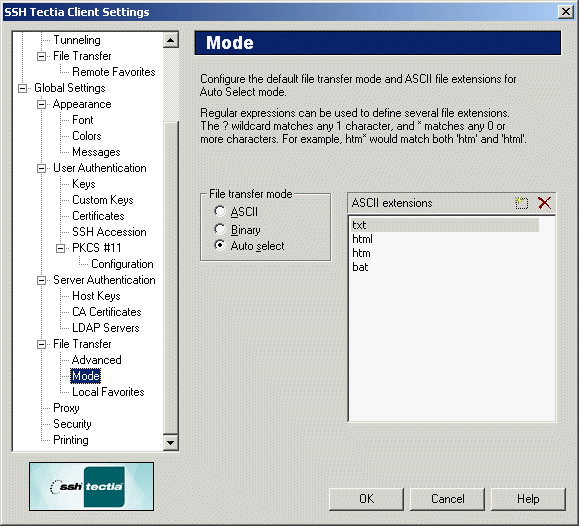
The Mode page of the Settings dialog affects which files are
transferred using ASCII mode.
Figure : Selecting the file transfer mode
File Transfer Mode
Select the default file transfer mode from the following options:
ASCII
By default all files will be transferred in ASCII mode.
Binary
By default all files will be transferred in binary mode.
Auto Select
The files using a file extension specified on the ASCII Extensions list
will be transferred in ASCII mode. All other files will be transferred
in binary mode.
ASCII Extensions
Files using a file extension specified in the ASCII Extensions list will
be transferred using ASCII mode.
New
Click the New button (at the top right-hand side of the
ASCII Extensions list) to add a new file extension to the list.
The keyboard shortcut for the New button is the Ins key.
Note that you can use wild cards to specify the file extensions. The ?
character matches any 1 character, and the * character matches any 0 or
more characters. For example htm* would match both htm and
html.
Delete
Select a file extension entry from the list and click the
Delete button (at the top right-hand side of the ASCII
Extensions list) to remove the extension. The keyboard shortcut for
the Delete button is the Delete key.